Wondering which app gives the best online driving directions? Most roundups answer that as if every driver has the same job. A Georgia teen working toward a license doesn't need directions for the same reasons as a delivery driver or a road-tripping family.
For a new driver, navigation is part of training. You need to log practice hours, plan calm routes for Joshua's Law driving time, find your way to lessons, and get comfortable with the roads around your Georgia DDS location. A good directions app can help you repeat the same route, preview turns, avoid heavy traffic when you're still building confidence, and keep a parent or instructor focused on coaching instead of giving late directions.
That's why this list looks at direction tools through a learner's lens. Can it handle simple practice loops? Does it work well on a phone? Can you print a route for a lesson? Is it useful if cell service drops? Does it help with multi-stop practice, like school, parking lot, neighborhood streets, and the testing center in one trip?
Google Maps is still the benchmark in major markets because of its scale and feature set. In its review of the major consumer navigation apps, The Zebra called Google Maps the “top map app,” pointing to its “breadth of coverage,” “extensive features,” and support for multiple stops in a route, which matters for errands, commuting, and practice drives with several destinations (The Zebra's navigation app comparison).
Here are the 10 tools that make the most sense for new Georgia drivers in 2026.
1. Google Maps
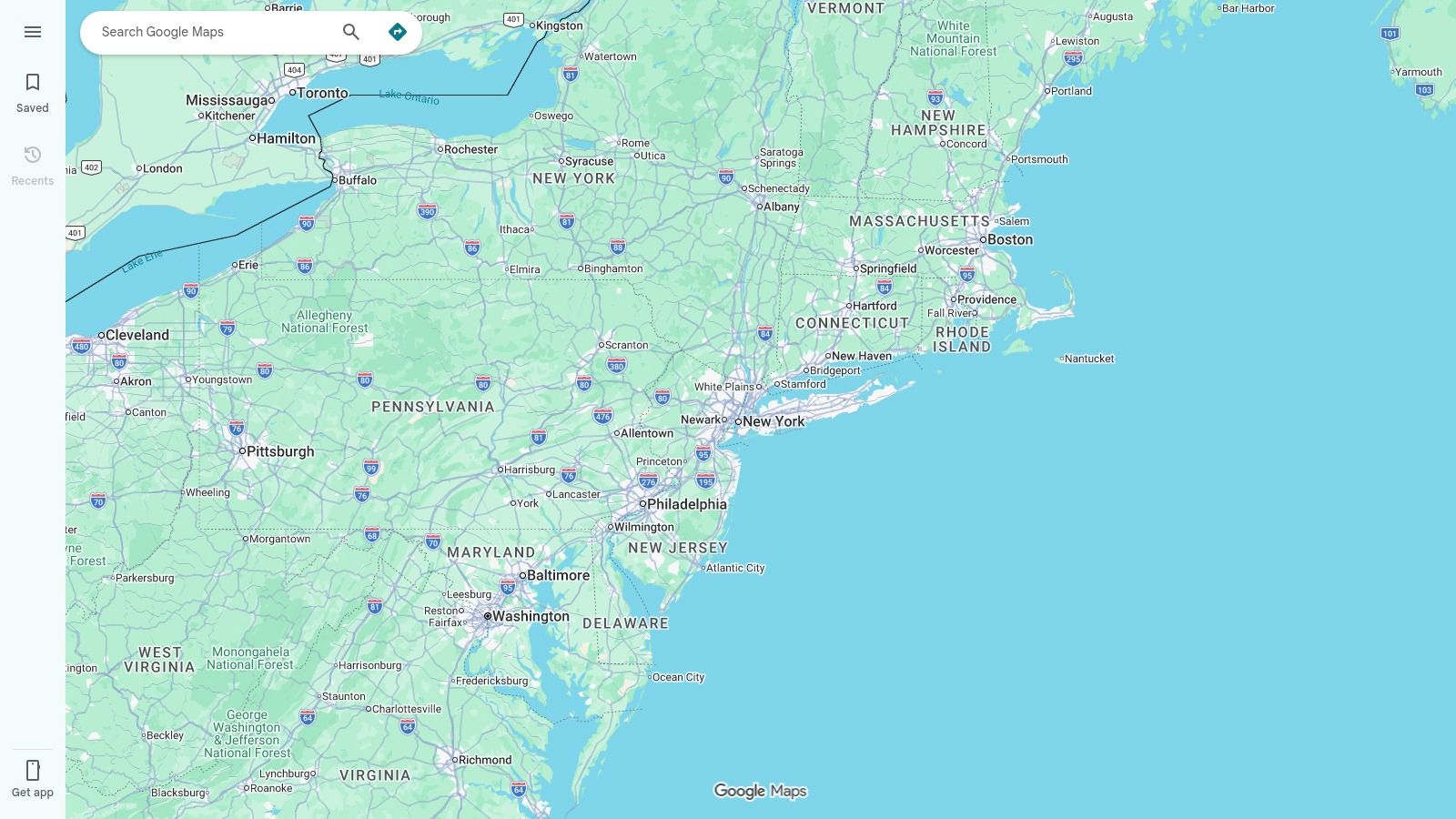
If you're starting from scratch, use Google Maps. It's the easiest recommendation for most Georgia learners because it combines turn-by-turn navigation, place search, traffic awareness, and multi-stop planning in one familiar app.
That matters during driver training. You can build a route from home to a school parking lot, then to a quiet neighborhood, then to a DDS area, all without switching tools. For a student who's still learning lane position, left turns, and timing at intersections, fewer moving parts on the screen usually means less confusion.
Why it works well for practice drives
Google Maps is strongest when you need a general-purpose tool that does many things well. It supports multiple stops, which is one reason it fits practice sessions better than older point-to-point map tools.
Use it when you want to:
- Repeat a test-style route: Save the same destination and run it several times at different times of day.
- Preview unfamiliar areas: Check entrances, side streets, and nearby businesses before you drive.
- Keep lesson planning simple: Send the route to a parent, teen, or instructor ahead of time.
Practical rule: Set the route before the car moves. New drivers shouldn't tap around the app at stoplights.
Google Maps also helps parents stay in teaching mode. One person can watch the road and coach. The phone handles the voice prompts. That's much better than a passenger saying “turn here” at the last second.
Its main weakness is connectivity. Full functionality depends on data, so offline areas need planning ahead. It's also smart to pair route practice with tips to avoid distracted driving so navigation doesn't become another distraction.
2. Apple Maps
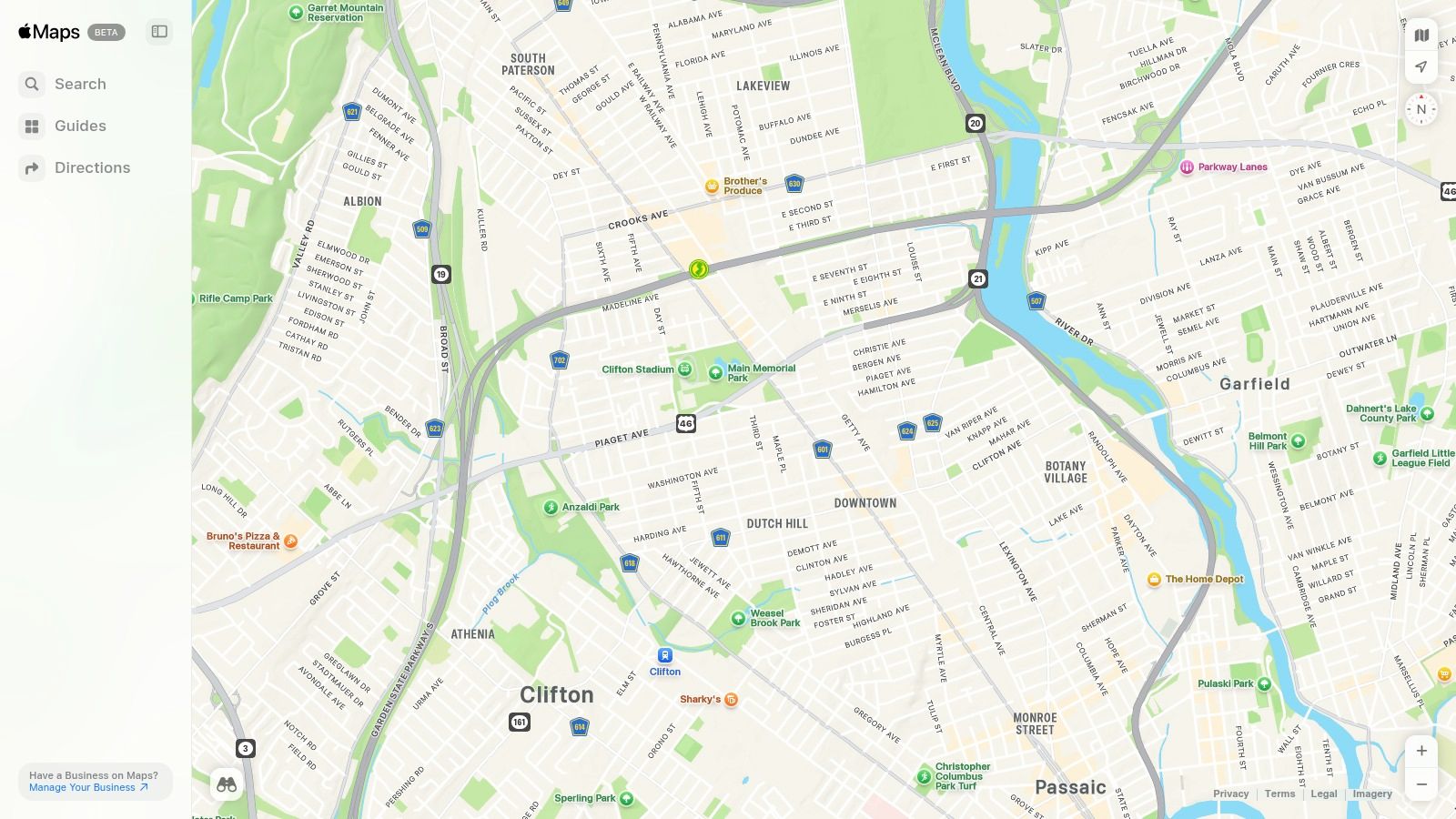
If your teen uses an iPhone and your family car runs CarPlay, Apple Maps is a very comfortable choice. It feels clean, calm, and easy to glance at, which matters when a new driver is already processing mirrors, signs, lane markings, and speed control.
Apple Maps is often a better fit than people expect. Independent route-planning guidance noted that the best option depends on the use case, with Apple Maps frequently recommended for general consumers while dedicated planners handle more complex routes and field workflows better (Badger Mapping's route planner guide).
Best fit for iPhone households
Apple Maps stands out when you want a simple interface and tight device integration. The app works naturally with CarPlay and Apple Watch, and that can reduce the amount of fumbling that happens before a lesson.
A few practical uses for Georgia learners:
- Share ETA with family: Helpful when a student is driving home from a lesson.
- Use Look Around where available: Good for previewing intersections and building entrances.
- Keep the display uncluttered: Cleaner visuals can help anxious beginners.
The limits are straightforward. Apple Maps isn't the best cross-platform choice if some family members use Android or if you like planning routes on the web from a desktop. It's strongest inside the Apple ecosystem.
For wet-weather practice, pair route planning with safe driving habits for rain. Navigation can tell you where to go. It can't shorten your stopping distance.
3. Waze
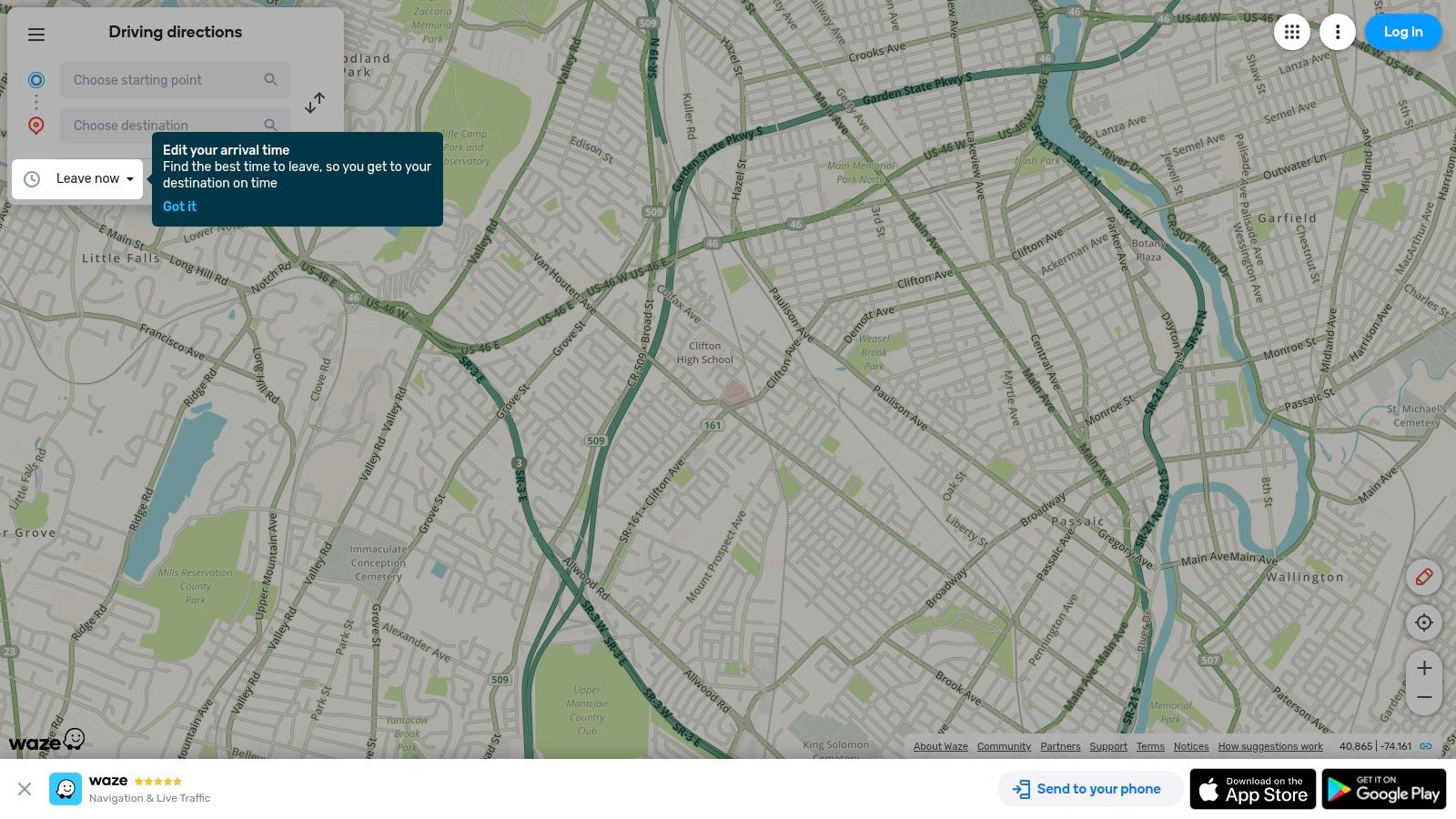
Waze is the traffic specialist on this list. If Google Maps is the all-around student, Waze is the app that watches the road ahead for slowdowns, hazards, and sudden changes.
That can be useful in metro Atlanta, where a calm practice route can turn busy fast. Waze is built around live conditions and quick rerouting, so it helps when you want to avoid congestion instead of driving straight into it.
When Waze helps a new driver most
Waze is best for learners who already know the basics and are starting to handle busier roads. It's especially useful when a parent or instructor wants current road information without checking multiple sources.
Good use cases include:
- Avoiding traffic-heavy practice windows: Shift to quieter roads if a route gets backed up.
- Seeing reported hazards: Debris, closures, and incidents can become teaching moments.
- Comparing route choices: Learn why one path may be safer or simpler than another.
Market research on smart navigation apps says leading systems now combine satellite, sensor, and user-report data to update traffic conditions and avoid jams, accidents, and closures. The same report projects the navigation-app market will reach USD 5.4 billion by 2034, with a 12.8% CAGR, reflecting adoption of these live-routing features (Market.us smart navigation apps market report).
Waze does have a downside for beginners. It can suggest cut-through routes that are efficient but stressful. That's not always what a learner needs. Sometimes the best online driving directions for a student aren't the fastest. They're the clearest. If you use Waze, combine it with a simple defensive scan like the IPDE process for safer driving decisions.
For a first-time driver, a slower route with fewer surprises often beats a faster route with more lane changes.
4. HERE WeGo
HERE WeGo makes sense when your biggest worry is losing signal. That's a real concern in rural stretches, on long drives, and on practice sessions where you don't want navigation to disappear halfway through the route.
Offline reliability is still an underserved need in directions content. Offline map apps position themselves around helping people search routes and find their way “anywhere, anytime” without a live connection, which shows that disconnected use still matters for many drivers, especially in weak-service areas and travel situations (offline navigation app listing on Google Play).
Strong choice for patchy coverage
HERE WeGo is worth considering if your practice time includes outer suburbs, rural roads, or road trips beyond the city. Downloaded maps reduce stress because the route stays available even if signal drops.
That gives it a clear role for:
- Rural Georgia practice: Less dependence on mobile data.
- Parent-led lessons: Fewer interruptions from poor service.
- Trip rehearsal: Review and save a route before leaving home.
It won't match Google Maps for place search depth in many areas, and it doesn't have Waze's crowd-reported energy. But when the priority is dependable navigation with offline support, it earns its spot.
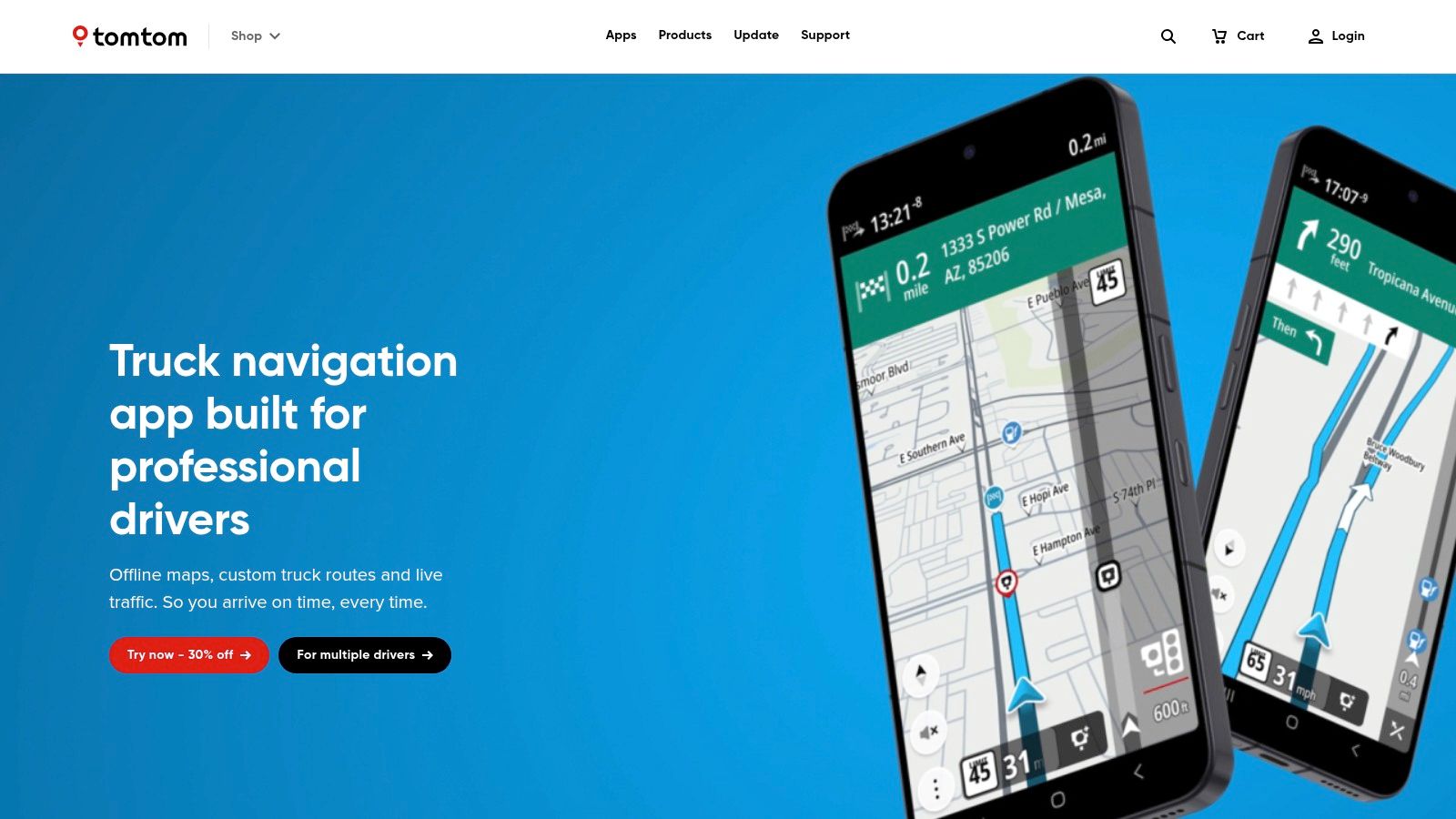
5. TomTom GO Navigation
TomTom GO Navigation feels more like a dedicated navigation product than a general map app. That's good for drivers who want a screen built mainly around driving, not reviews, restaurants, and side features.
For a learner, that cleaner focus can be useful during route repetition. If you're practicing the same skills over and over, advanced lane guidance and a driver-centered interface can reduce hesitation on bigger roads.
Best for drivers who want a dedicated nav feel
TomTom fits a narrow but real audience. It's well suited to families who don't mind paying for a navigation-first app and want strong offline support plus traffic-aware routing.
Consider it if you value:
- Lane guidance: Helpful before complex turns and merges.
- Offline maps: Good backup for longer drives.
- A driving-first layout: Less clutter than many consumer map tools.
The tradeoff is cost. It isn't the casual free option most students start with. And for finding local businesses or fast address lookups, people often still reach for Google Maps first.
6. Sygic GPS Navigation
Sygic GPS Navigation sits between mainstream navigation and travel-ready offline mapping. It's attractive if you want offline use as the default, then add extras only if you need them.
That setup can work well for Georgia learners who split time between daily local practice and occasional longer trips. Download the maps once, keep the core navigation available, and decide later whether live traffic or premium extras are worth it.
A practical middle ground
Sygic is easier to recommend when your main question is, “What if my data connection isn't reliable?” It's less ideal when your main question is, “Which app has the best business search?”
Its strengths are clear:
- Offline-first navigation: Good for controlled practice sessions.
- Optional upgrades: Add traffic and other features if needed.
- Travel flexibility: Useful beyond the licensing stage.
Its main weakness is complexity in plan choices. Before paying for anything, verify which features are included in the version you want. New drivers usually do better with a simple setup.
7. MapQuest
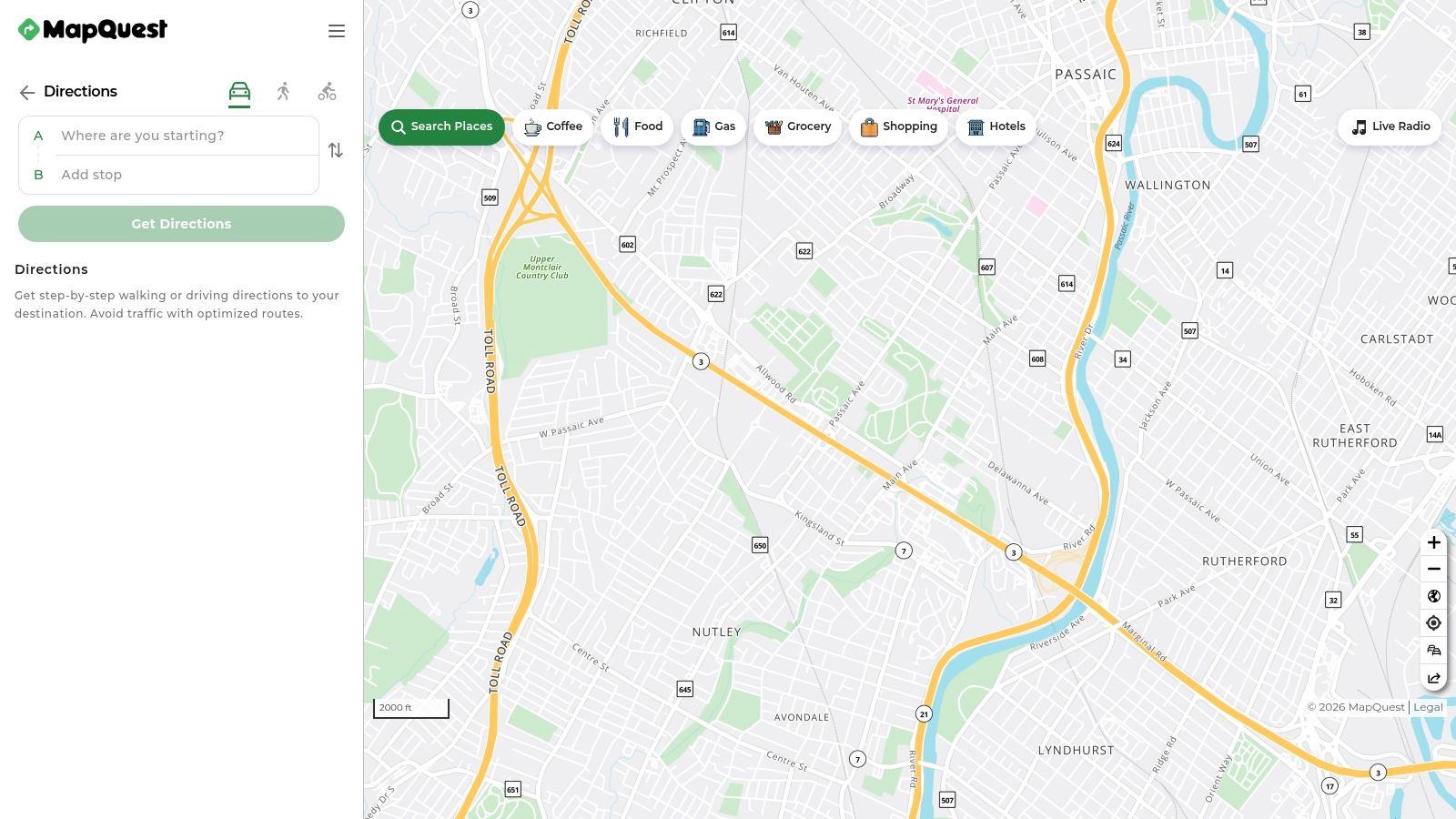
MapQuest Directions still deserves a place on a list about the best online driving directions because it does one old-school thing very well. It makes route planning and printing simple.
For Georgia road-test prep, that matters more than people think. Some students learn better when they can see the whole route on a desktop, print the turns, and review them with a parent or instructor before driving.
Best for printable directions and simple multi-stop plans
In a 2025 comparison of free route planners, EZRoutePlanner reported that MapQuest's free plan supports up to 26 stops per route. The same comparison said most free route planners are limited to roughly 10 to 26 stops, which explains why stop limits still matter for multi-destination planning (EZRoutePlanner's free route planner comparison).
That's more than enough for most practice sessions. You probably won't need that many stops to plan a route from home to a parking lot, through a residential area, around a business park, and back.
MapQuest is especially useful for:
- Printing turn lists: Great for route reviews before lessons.
- Desktop planning: Easy for parents who prefer a larger screen.
- Simple stop ordering: Helpful for structured practice sessions.
It's not the strongest mobile navigation experience on this list, and live traffic features are thinner than what you get with Google Maps or Waze. But for pre-drive planning, it remains useful.
8. Bing Maps
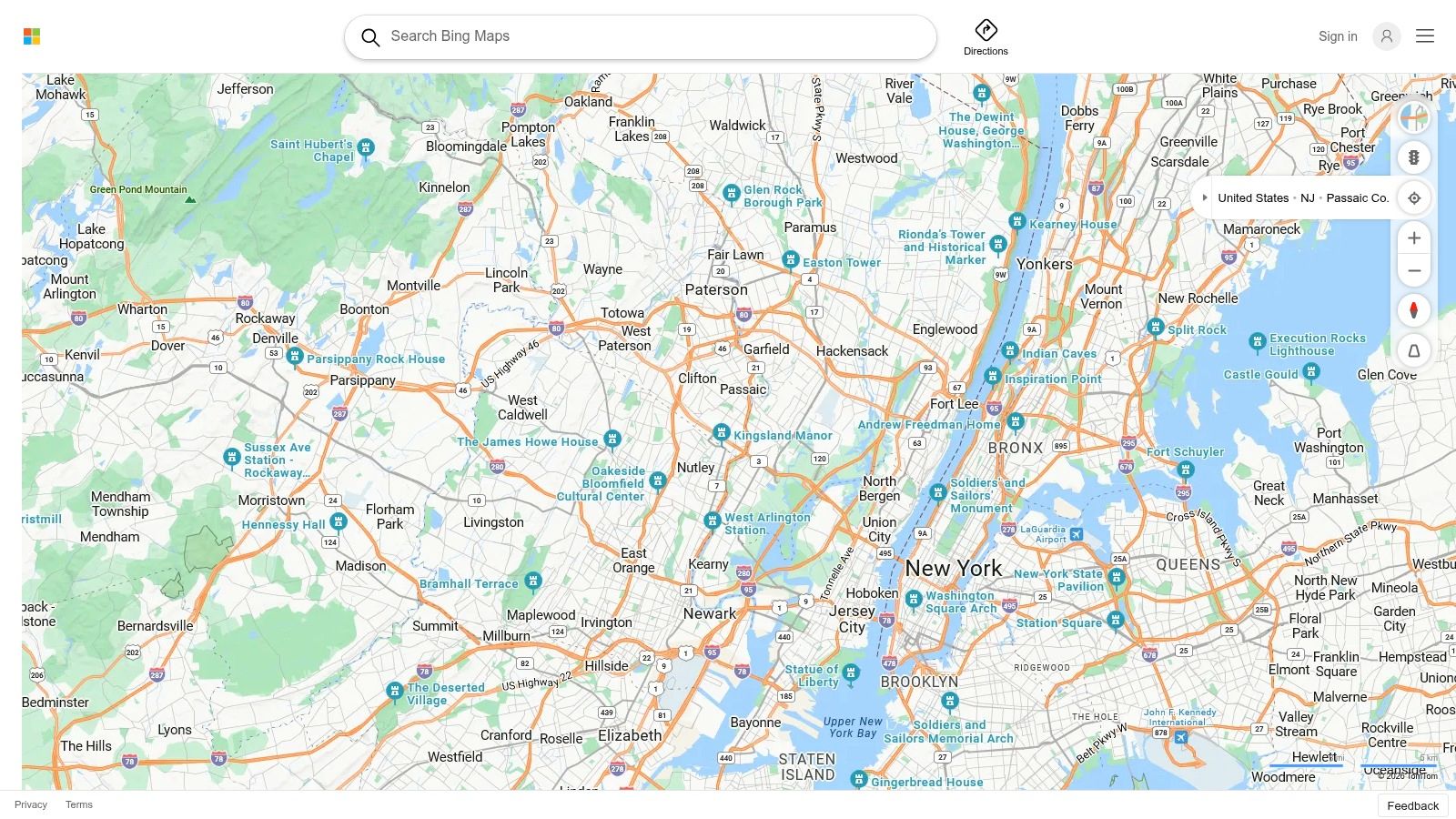
Bing Maps is a desktop-first choice. It's less about being your full-time phone navigator and more about checking routes, viewing aerial imagery, and printing directions from a computer.
That makes it relevant for families who plan practice sessions at home. If a parent is already using Microsoft tools, Bing Maps can fit neatly into that routine.
Good for desktop route review
Bing Maps works best when you're sitting down before the drive. It's handy for comparing road layouts, locating parking lots, and printing directions for a lesson folder.
It's a reasonable option for:
- Aerial route checks: Spot large intersections and building layouts.
- Printable directions: Keep a paper backup in the car.
- Custom map planning: Add locations for repeated practice.
Its weakness is obvious. Mobile app support is limited compared with the top navigation apps, so it's usually a planning tool, not the final in-car choice.
9. AAA TripTik Travel Planner
AAA TripTik Travel Planner fits drivers who want to map out a full practice session before anyone starts the car. For a new Georgia driver working through Joshua's Law practice hours, that structure can help a lot. Instead of choosing one destination, you can plan a route with several training stops in the right order.
A good example is a parent-built lesson loop. Start in a quiet neighborhood for turns and stop signs, add a parking lot for backing and parking, continue to a busier commercial road for lane changes, then finish near home. TripTik works like a written lesson plan with directions attached.
Best for multi-stop practice days
This tool makes the most sense when your drive has a purpose beyond getting from point A to point B. New Georgia drivers often need repeated, organized practice. A route built around specific skills can keep a two-hour practice block focused instead of random.
It can be useful for:
- Joshua's Law practice planning: Build longer drives with several skill areas.
- Road test preparation: Scout a DDS area, then add nearby low-stress roads for warm-up practice.
- Family trip training: Let a teen handle one leg of a longer day with clear stops already planned.
- Printable trip notes: Helpful for parents who want a paper plan in the car.
TripTik also includes travel-oriented extras, which matter more on long outings than on daily commuting. If your family is comparing how route planners present destinations and stops, this look at innovative ads for travel businesses shows a different angle on trip planning and user needs.
The tradeoff is simplicity. TripTik is more of a planner than a live, beginner-friendly turn-by-turn app for everyday use. If you already use AAA services, it can be a helpful organizer. If not, many new drivers in Georgia will probably use it for pre-drive planning, then switch to a simpler phone app once the lesson begins.
10. OpenRouteService
OpenRouteService is the most niche option here, but it has real value for instructors, planners, and privacy-conscious users. It's built on open map data and offers route exports and analysis tools that mainstream apps usually hide.
That won't matter to every teen driver. It may matter to a driving school, a parent who wants a custom route, or anyone who likes seeing how route planning works at a deeper level.
Best for custom planning and exports
OpenRouteService is less about live traffic and more about control. You can customize routes, export them, and use tools like isochrones to see what's reachable within a certain travel time.
That can help with:
- Instructor planning: Build custom practice areas around a location.
- Route sharing: Export routes for lesson prep.
- Open-data workflows: Useful for people who want transparency.
It's not the easiest app for a nervous beginner to use alone in the car. Think of it as a planning companion, not a default first app. If you're interested in broader route-planning ideas for travel-focused businesses, this roundup of innovative ads for travel businesses offers a different perspective on trip planning and audience needs.
Top 10 Online Driving Directions Comparison
Which directions app helps a new Georgia driver practice with less stress, not just get from one place to another?
The best choice depends on what you are trying to do that day. A route for Joshua's Law practice is different from a trip across Atlanta traffic, and both are different from a calm review drive near a Georgia DDS test location. Use the table below like a driving instructor's checklist. Pick the tool that fits the lesson, the phone in your hand, and the kind of route you need to repeat.
| App | Core features | Best fit for new Georgia drivers | Why it stands out | Limits / Price |
|---|---|---|---|---|
| Google Maps | Turn-by-turn directions, live traffic, lane guidance, broad place search | New drivers and parents planning practice routes, especially near DDS offices and busy suburban roads | Very strong address accuracy, helpful rerouting, easy to preview local roads before a lesson | Free. Live traffic needs data. Privacy settings are worth reviewing first. |
| Apple Maps | Turn-by-turn directions, Look Around, CarPlay and Apple Watch support | iPhone users who want a clean screen and simple guidance during supervised practice | Clear visual design, strong Apple device integration, easy to follow at a glance | Free. Best if your family already uses Apple devices. Features vary by area. |
| Waze | Community hazard reports, live rerouting, gas and parking info | New drivers practicing with an experienced adult on real-world traffic days | Excellent for spotting crashes, police activity, and slowdowns reported by other drivers | Free. It can push quicker routes that add pressure for a nervous beginner. |
| HERE WeGo | Offline maps, voice guidance, route planning across travel modes | Georgia families driving in areas with weak signal or trying to save mobile data | Strong offline use, dependable basic routing, useful for longer practice drives outside dense metro areas | Free. Search and place details are sometimes less complete than Google Maps. |
| TomTom GO Navigation | Offline maps, lane guidance, speed camera alerts | Drivers who want a focused navigation app with less clutter on screen | Clear lane help and a driver-first layout can reduce missed turns | Paid subscription. Place search can feel narrower than larger map platforms. |
| Sygic GPS Navigation | Offline-first maps, optional live traffic, AR features | Learners who want offline guidance first and extra features later | Good for families who want the map to keep working even without strong service | Freemium. Pricing and feature tiers can take time to sort out. |
| MapQuest | Web routing, multi-stop planning, printable directions, traffic | Parents, instructors, and teens who want to print a practice route before getting in the car | Easy to review on desktop and simple to bring as a paper backup during training | Free. Mobile experience and map depth are more basic than top apps. |
| Bing Maps | Driving directions, traffic, streetside and aerial views | Desktop route planning, especially for examining road layout before a practice session | Helpful aerial and street-level views for studying intersections and parking-lot entrances | Free. Mobile support and live community reporting are limited. |
| AAA TripTik Travel Planner | Multi-stop trip planning, printable trip plans, AAA travel content | Families planning longer supervised drives or combining errands into one training route | Good for organizing several stops in one outing and printing a clean route plan | Best for AAA members. Place coverage is narrower than broad consumer map apps. AAA TripTik Travel Planner |
| OpenRouteService | Open map data routing, travel-time areas, route export tools | Instructors, detail-focused parents, and advanced planners building custom lesson routes | Useful for shaping custom practice loops and exporting routes for repeat sessions | Free public site. Live traffic tools are limited, and setup is less beginner-friendly. |
For a first-time Georgia driver, the easiest way to choose is to match the app to the lesson.
- Use Google Maps for general practice, DDS route scouting, and finding schools, neighborhoods, and parking lots.
- Use Apple Maps if the student driver uses an iPhone and needs a cleaner, less busy screen.
- Use Waze for supervised drives where learning to respond calmly to traffic changes matters.
- Use HERE WeGo, TomTom, or Sygic if offline maps matter because your route may pass through weaker service areas.
- Use MapQuest or Bing Maps when you want to study and print the route before the engine starts.
- Use AAA TripTik for longer, structured family drives with several planned stops.
- Use OpenRouteService if a parent or instructor wants more control over route design.
A helpful rule is simple. The more anxious the driver, the more the app should reduce surprises. Clean visuals, clear voice prompts, and easy pre-drive review usually matter more than extra features for a beginner.
For many new Georgia drivers, a two-app setup works well. Use one tool to plan on a larger screen, then use another for live guidance in the car. That approach makes practice drives feel less like guesswork and more like following a lesson plan.
From Planning Routes to Passing Your Test
How do you turn a map app into something that helps a new Georgia driver pass the DDS road test?
Use it like a practice coach, not just a directions tool.
The goal is to build drives that teach one skill at a time, especially if the student is working through driver's education, logging supervised practice for Joshua's Law, or getting ready for a road test at a Georgia DDS location. A good route should feel like a lesson plan. It should show the student what to expect, where to focus, and how to repeat the same skills until they feel normal.
Start on a computer or tablet if possible. A larger screen makes road patterns easier to study before anyone starts the engine. You can spot school zones, tight turns, multi-lane intersections, parking lots, and quiet streets near the DDS office you plan to use. That matters for beginners because confusion often starts before the car even moves.
Then build short routes with a clear purpose.
A one-hour drive with no plan can leave a new driver tired without teaching much. A focused route works better. Pick one practice drive for stop signs and smooth braking. Use another for lane position and right turns. Save a separate session for parking, backing, and low-speed control in a quiet lot or business park.
A simple Georgia road-test prep route often includes:
- A calm starting point: Begin near home or on a low-stress street so the student can settle in.
- A neighborhood section: Practice scanning, stop control, speed discipline, and watching for pedestrians.
- A low-speed practice area: Use a parking lot or office park for turns, parking, backing, and steering control.
- A section near the DDS area: Review the road types, traffic signals, and lane changes the student may see on test day.
That last step helps a lot. New drivers usually do better when the road itself feels familiar.
If you plan to practice near a Georgia DDS location, drive the area at the same time of day as the future test when you can. Traffic flow can change a lot between midmorning, school release time, and late afternoon. Seeing those conditions early helps the student stay calmer later.
Before each drive, do a quick pre-drive review:
- Mount the phone before shifting into gear
- Start the route before leaving the parking space
- Turn on voice guidance
- Download offline maps if service may be weak
- Let the supervising adult handle route changes
That last point is a safety rule, not just a convenience. A beginner driver should keep full attention on mirrors, lane position, traffic signs, speed, and brake timing. Even a quick glance at the phone can break concentration at the wrong moment.
For Georgia families who want structured help beyond route planning, A-1 Driving School offers driver's education, Joshua's Law course options, behind-the-wheel lessons, road test preparation, and testing support. That can pair well with app-based route practice because the student gets both repetition and instruction.
Keep the order simple. Choose the tool. Build the route. Practice the same route until the student feels steady. Then increase the difficulty by adding busier roads, more lane changes, or practice near the DDS test area.
That is how directions become driving progress.