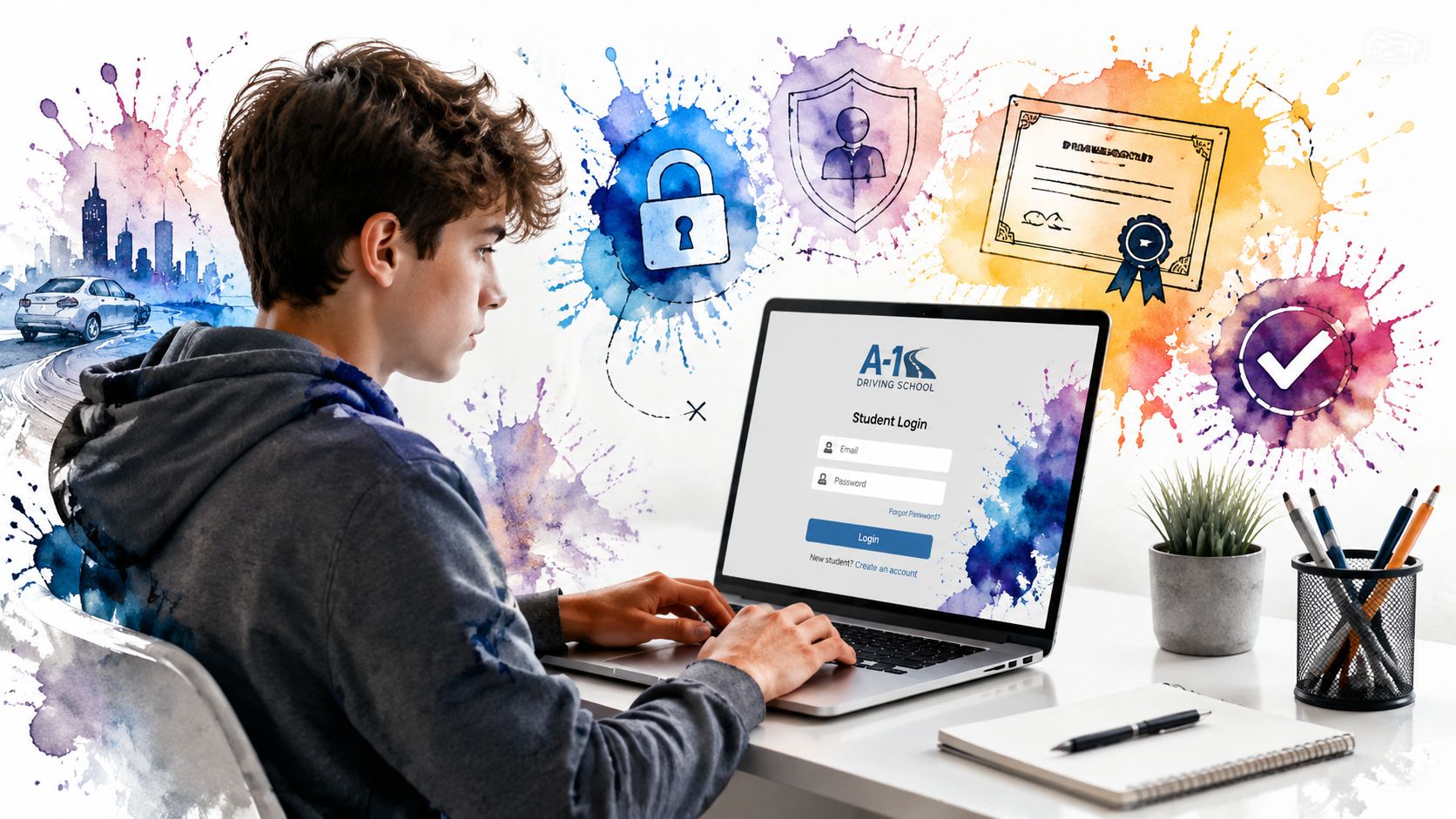
If you're staring at an online drivers ed login screen and wondering whether you're doing this right, you're not alone. Most students and parents don't get stuck on the driving part first. They get stuck on the account part. Which email has the login details? Which name should go on the account? If the course opens, does that mean you're officially on track for Joshua's Law?
Those questions matter because your login isn't just a password gate. It's the record that connects your coursework, your progress, and eventually your completion documents to the student who plans to move forward in Georgia's licensing process. If the account details are sloppy at the start, cleanup later can be frustrating.
I tell families to think of the portal like a student file cabinet with a lock on it. Every lesson completed, every quiz passed, and every certificate step depends on that account matching the right student from day one.
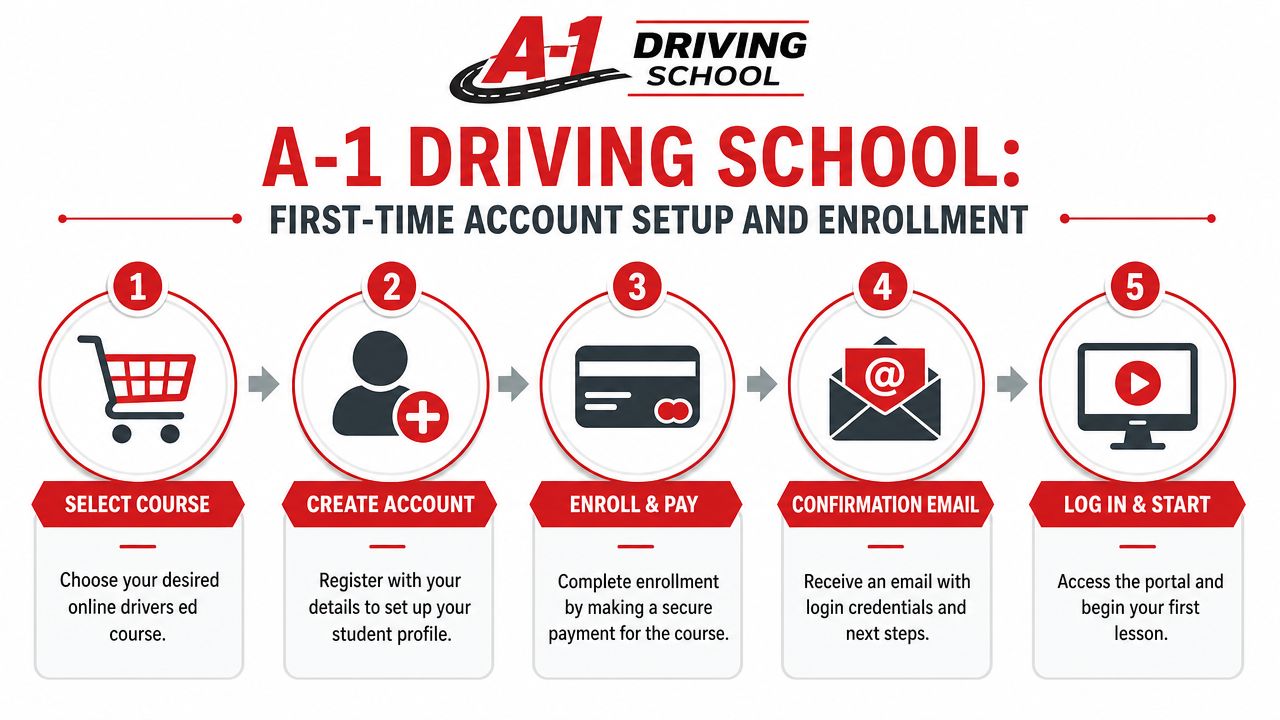
First-Time Account Setup and Enrollment
The first login usually starts before you ever reach the portal. It starts with the welcome email or enrollment confirmation. That's where most students find the first clue about what to use for access and what the school expects next.
Online driver education systems typically use a unique student credential instead of a simple public username. One example shows a login code built from the student's first name plus seven numbers, with recovery handled by email or support request through an online driver's ed login page. That setup exists for a reason. The course provider needs to tie progress and completion records to one specific learner.
What to check before you create the account
When you open your enrollment message, slow down and verify the student details before you rush into lesson one.
- Use the student's legal name: The name on the account should match the student's official records. That helps prevent problems when the completion record is used for licensing steps.
- Check the email address carefully: Password reset and support messages usually go to the email tied to enrollment.
- Save the credential information: Put the login code, username, or temporary password somewhere safe that both parent and student can find.
- Confirm the course selection: Make sure the student enrolled in the correct driver's education option before starting.
If you're still enrolling, A-1 has a walkthrough on how to enroll in driver's ed that makes the signup process easier to follow.
Why the setup details matter
A lot of parents assume the login is just for convenience. It isn't. The account is part of the compliance trail. In state-approved online learning, the system has to show who completed the work and preserve that record in a way the school or state process can rely on.
Practical rule: The student should complete the account under the same identity that will appear on official licensing paperwork.
That same principle shows up outside driver's ed too. If you've ever wondered why schools and service businesses care so much about clean intake information, this guide on how to build forms for businesses is a useful example of how good forms reduce errors before they become support problems.
A simple first-day routine
For most families, the cleanest first-day routine looks like this:
- Find the confirmation email
- Open the portal from the provided instructions
- Enter the student credential exactly as given
- Set a password the student can remember
- Log out and back in once to confirm everything works
If that second login works, you're in good shape. You've done more than open a course. You've created the student's official online starting point.
Your Guide to the A-1 Online Portal
Returning students usually don't need a big tutorial. They need to know where to click so they can get back to work without wasting time.

Once you're inside the portal, focus on three things first: your current lesson, your progress marker, and your quiz status. Those are the areas that usually tell you whether you can keep moving or whether the system is waiting on you to finish something.
If you're new to web-based coursework, A-1 also has a short explainer on what online driver's education is and how students use it.
What the dashboard is really showing you
Most student dashboards are built to answer one question quickly. "Where do I resume?" If you logged out in the middle of a module, the system should bring you back close to where you stopped, as long as your session saved correctly.
Look for these common dashboard cues:
- Resume lesson button: This usually takes you back to the last unfinished module.
- Completed section markers: These help you avoid repeating work by accident.
- Quiz alerts: If a quiz blocks the next lesson, you'll usually see that immediately.
- Account notices: Sometimes the portal posts reminders about unfinished items or upcoming requirements.
How to handle quizzes without getting stuck
One A-1 online portal states that quizzes require a 90% pass rate and can be retaken unlimited times through the A-1 Open Road portal. That's a mastery approach. The course isn't asking whether you glanced at the material. It's asking whether you understood it well enough to move on.
Don't treat unlimited retakes like a shortcut. Review what you missed before you try again.
That one habit saves time. Students who keep guessing often spend longer in the course than students who pause, reread the lesson, and then retake the quiz with a clearer head.
A good portal rhythm is simple. Log in, resume one lesson, finish it fully, review the quiz results, and only then move ahead. That keeps your online drivers ed login from becoming a stop-and-start struggle.
Solving Common Online Drivers Ed Login Issues
Login trouble usually feels bigger than it is. Most problems come down to one of four things: the wrong credential, the wrong password, an old browser session, or a mismatch between the student's information and what was entered at enrollment.
If you're trying to get back into the course and the screen keeps rejecting you, start with the basics before assuming the account is broken. Families often solve this faster by checking the original enrollment details and then using the school-specific portal link instead of searching around.
For students using the school portal tied to Joshua's Law coursework, the quickest first step is often to return to the Joshua's Law login page and re-enter the credential exactly as provided.
Common Login Errors and Quick Fixes
| Error Message / Symptom | What It Means | How to Fix It |
|---|---|---|
| Password not accepted | The password was typed incorrectly, changed, or saved wrong in the browser | Re-enter it slowly, check capitalization, then use the password recovery option if needed |
| Username or login code not found | The portal doesn't recognize the credential entered | Go back to the original email and copy the student credential exactly as listed |
| Page keeps reloading or freezing | The browser may be holding old session data | Clear cache and cookies, close the browser, and sign in again |
| Login works on one device but not another | The second device may have browser or autofill issues | Try a different browser, turn off autofill, or switch devices temporarily |
| Student can log in but can't continue lessons | A quiz, lesson, or session save may be incomplete | Return to the last lesson, confirm it finished properly, and look for any required quiz step |
| Password reset email doesn't appear | The email may be delayed or sent to another folder | Check spam, promotions, and the email address used during enrollment |
Fast checks that fix a lot of problems
Before you contact support, run through this short list.
- Match the student's name to the account: If the account was created under a nickname or a parent's information by mistake, you may hit record issues later.
- Avoid old bookmarks: Search results can land you on the wrong portal page. Use the direct school link from your enrollment message.
- Try a fresh browser session: Incognito or private mode can help you tell whether the issue is saved browser data.
- Write down the exact error: A screenshot or the exact wording makes support much faster.
A login problem is usually a record problem or a browser problem. It rarely means your course progress is gone.
When it's time to ask for help
If you've checked the credential, tried recovery, and tested another browser, contact support with the student's full enrolled name and the email used to sign up. That's much more useful than saying, "It won't let me in."
The calmer approach works better here. One clean support request beats ten rushed login attempts.
Accessing Your Joshua's Law Certificate
Finishing the last lesson feels like the end. In practice, it's the end of the coursework and the beginning of the completion process.
That difference matters because students often assume that once the last module closes, the certificate should appear instantly. Many online programs use progress-gated certification instead. In one approved course model, a student becomes eligible for a permit after the first 6 hours of a 32-hour curriculum, then receives a later certificate only after finishing all 32 hours and passing the road skills test, as shown in this state-approved course example. The important takeaway is simple. Account access and course completion are not the same thing as final certificate release.
What usually happens after the final lesson
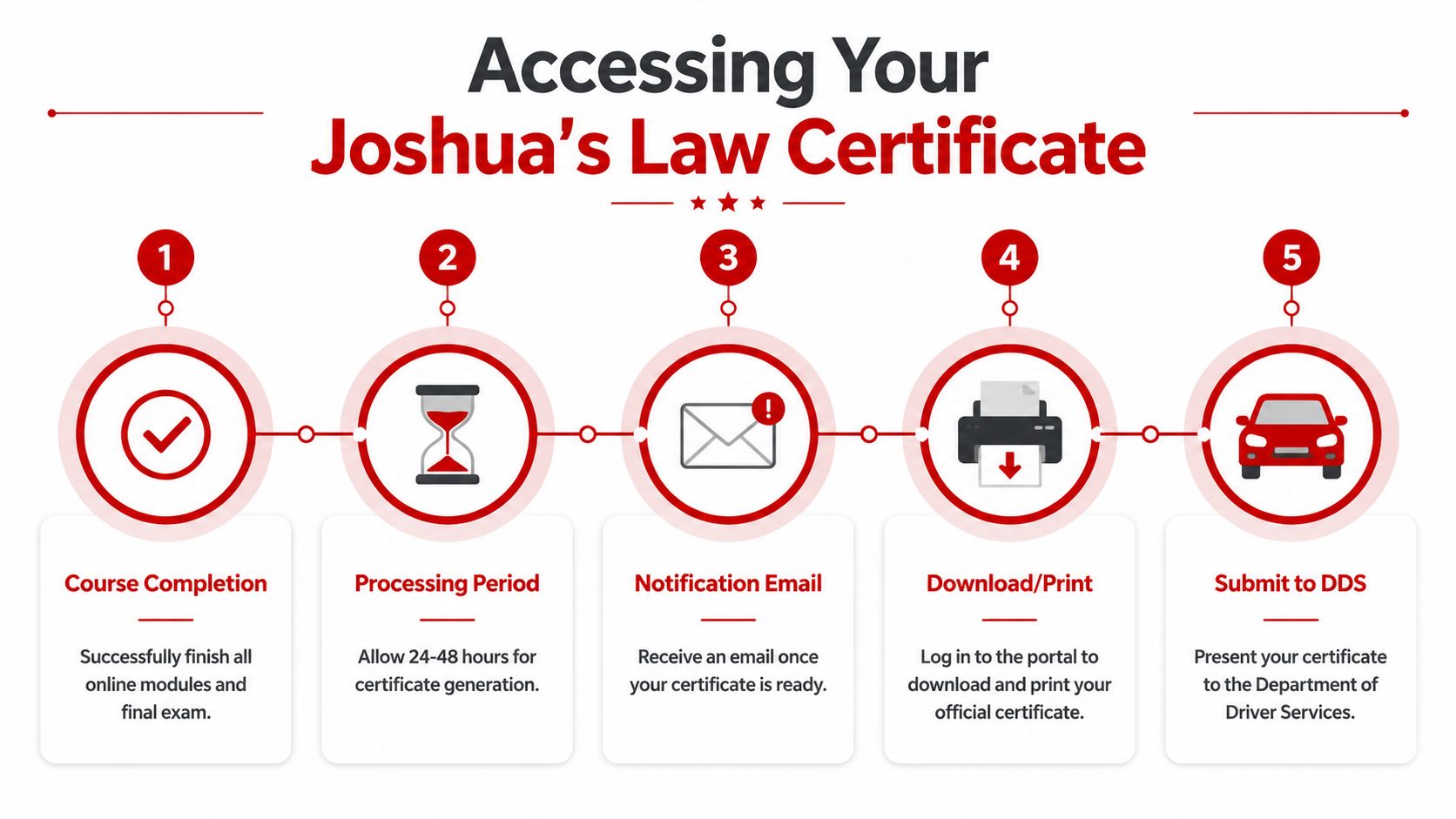
Once all required modules and final checks are done, the system may need time to verify that everything is complete and properly recorded under the student's account.
Watch for these steps:
- All modules show complete
- Required quizzes or final assessments are passed
- The platform verifies the record
- The certificate becomes available by portal access, email notice, or both
- The student downloads or prints the completion proof if needed
The most common misunderstanding
Students often say, "I finished the course, so I'm done." What they usually mean is that they finished the visible lesson content. But what you need for licensing is the usable completion record.
The certificate is the part that travels with you into the next licensing step. The final video screen does not.
So if your online drivers ed login shows completed work but you don't yet have the certificate, don't panic. Check the portal notice area, your email folders, and any completion instructions tied to the account. If something still looks off, contact the school with the student's exact enrollment details.
From Online Course to Behind the Wheel
You log in, finish the last lesson, and feel like the hard part is over. Then a parent asks, "Great. When are your driving lessons?" That moment catches a lot of Georgia families off guard, especially when Joshua's Law has made the online course feel like the main milestone.
The course gives students the map. Time in the car teaches them how to follow it under real traffic pressure.
Independent guidance on online driver education explains that the online portion usually covers classroom learning, while actual driving practice is a separate part of training, as noted in this overview of online driver course pros and cons.

What students need after the portal work
The portal helps you finish the academic side of driver education. The next step is building habits that only happen in a real car. That includes judging speed at intersections, checking mirrors without drifting, feeling how early to brake, and staying calm when traffic does something unexpected.
Students are often surprised by this gap. They may know the right answer on a quiz and still freeze for a second during an unprotected left turn. That is normal. Screen-based learning builds knowledge. Guided driving lessons turn that knowledge into timing, control, and confidence.
For families working through A-1 Driving School's process for Joshua's Law, the goal is to treat the portal as the starting point of training, not the finish line. Your login gets you through the online requirement. Your behind-the-wheel plan gets you closer to a license.
A good next-step checklist looks like this:
- Schedule lessons soon after course completion: Students usually perform better when the rules and road situations are still fresh in their minds.
- Match the lesson plan to the student's comfort level: A nervous beginner often benefits from multiple sessions, not a single practice drive.
- Ask how road test preparation fits in: Families often do better with a clear sequence instead of piecing together each step on their own.
- Keep all training records together: Store course completion proof, lesson confirmations, and licensing documents in one place so nothing gets lost at the last minute.
Why the transition matters
A student who completes online coursework has learned the rules. A student who practices with an instructor learns how to apply those rules while steering, scanning, signaling, and making decisions in real time.
That is why many Georgia families prefer one school that can handle the online class, driving lessons, lesson packages, road test services, and scholarship information in the same training path. A-1 Driving School offers those services in one place, which can make the process easier to track from first login to final licensing steps.
A completed online course shows that you learned the material. Time behind the wheel shows that you can use it safely.
If you're a parent, this is a good point to change the question. Instead of asking only whether the course is finished, ask whether the next drive is on the calendar.
Your Partner in Georgia Driver Training
Online coursework changed driver training because schools could finally track progress in a way that supports regulated education. Ohio's model shows that clearly. The state approves online courses for the 24-hour classroom requirement, and the broader system depends on account-based progress tracking to verify completion, as described by Ohio Driver Training requirements. That same basic idea matters to Georgia families too. The login is part of the training record, not just a convenience feature.
For students, that means your path is connected from the first sign-in forward. For parents, it means the smartest approach is to treat the portal, the course record, the certificate, and the driving lessons as one continuous process.
A practical checklist for families
- Keep enrollment emails: They're often the fastest way to recover credentials or confirm what was purchased.
- Use the student's real information: That helps prevent certificate and record mismatches.
- Don't stop at online completion: Plan the next driving step before the student loses momentum.
- Ask about scholarship options: The Georgia Driver's Education Scholarship Grant Program can make training more accessible for eligible students.
If your student still has technical questions, contact the school support team directly with the enrolled name and email address used for registration. If the portal is working but you're unsure about the next licensing step, ask about certificate handling, driving lessons, and road test scheduling in the same conversation. Bundling those questions saves time and reduces confusion.
If you're ready to move from login to real progress, A-1 Driving School can help you choose the right driver's education course, understand Joshua's Law requirements, explore driving lessons and lesson packages, check scholarship options, and line up the next step after your online coursework.